Body
D2L makes updates to Brightspace on a monthly basis. Taylor University's updates are usually available the 24th of the month. To access the complete D2L release notes for October 2026, sign into the D2L Brightspace Community and click on this link: October 2026/20.26.10 - Brightspace. Taylor University does not implement all updates.
Grades - Import doesn't properly update Grades with Same Name
To address a technical issue when importing grades, all imported grade items must now have unique names in the same course to prevent unintended updates from occurring. For more details, refer to the fixed issue article, Grades - Import doesn't properly update Grades with Same Name.
Createspace – Copy course content to the Content Library | Updated
Users with access to Createspace can now copy existing course content to Createspace using the Copy to Createspace option in the Content topic's action menu. This feature allows users to reuse course materials in the Createspace Content Library to easily re-use. Copied content appears in the root of the user's Content Library.
Previously, users could not copy existing course content directly to Createspace.
| Note |
Note: You can copy only learning objects that are compatible with the Createspace Content Library:
- Assignments
- Discussion topics
- Pages (HTML content topics)
- Quizzes
|
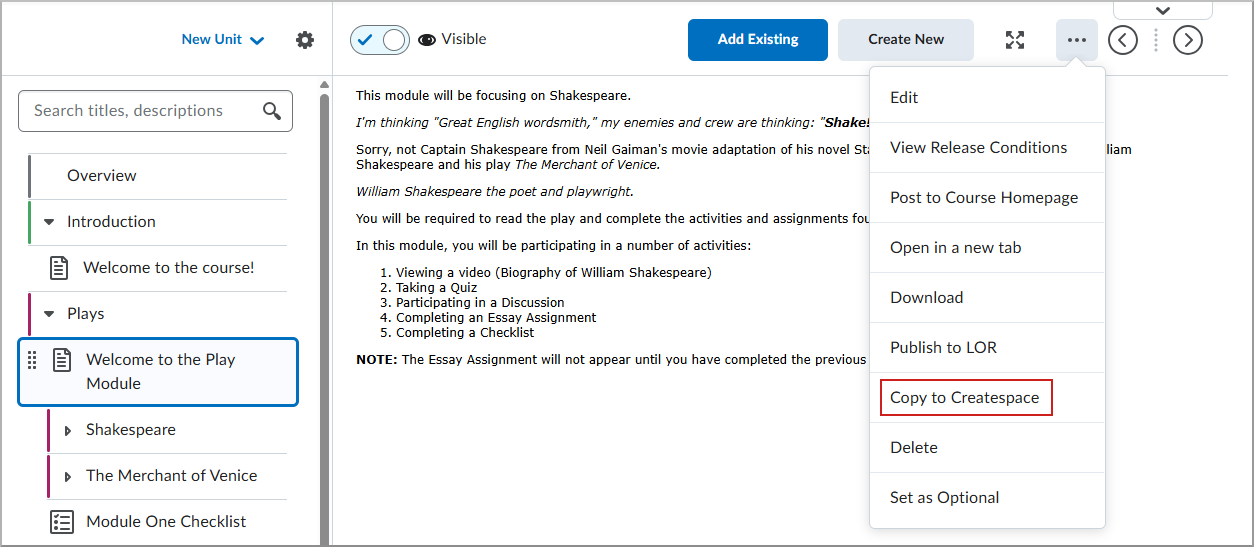
Figure: Select Copy to Createspace from the action menu to save content to your library.
Portfolio – Faster evidence review with expanded search | Updated
Introducing a new way to find learner evidence with expanded search in the Portfolio page. Instructors and administrators can now search for users by name to quickly locate and review specific evidence within Portfolio. To support a more seamless navigation experience in large course enrollments, optimizations have been made to improve the overall responsiveness of Portfolio workflows. Now, instructors and administrators spend less time navigating a large amount of evidence and more time reviewing what matters most.
Previously, instructors managing large course enrollments experienced slower page loads when reviewing the learner list and evidence pages. Locating a specific user required manual scrolling or relying on browser search tools, as no built-in search capability was available within Portfolio.
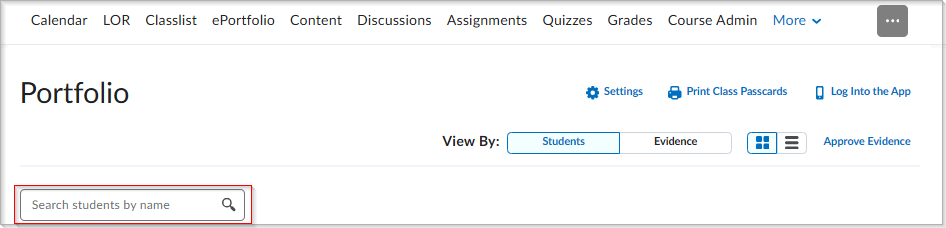
Figure: The new search bar in the Portfolio Students view allows instructors to filter the student list by name.
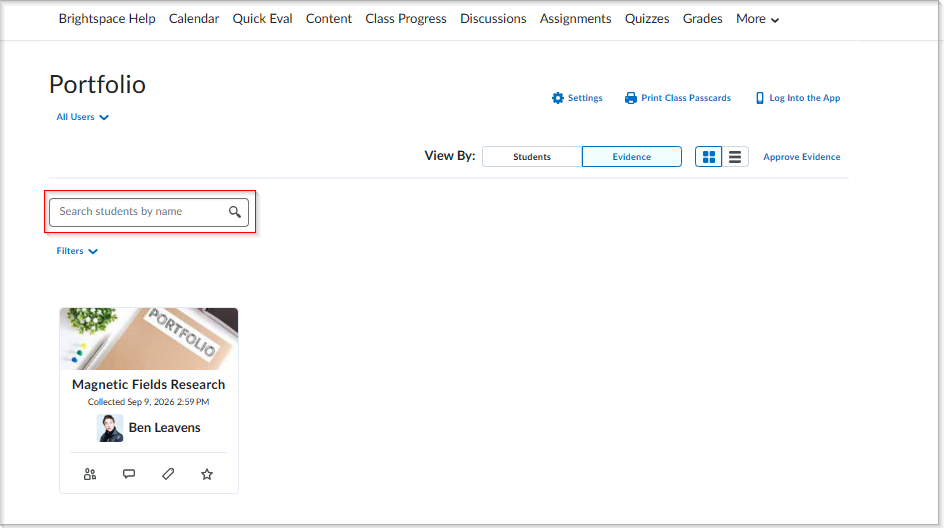
Figure: The new search bar on the Portfolio Evidence view allows instructors to quickly locate evidence by student name.
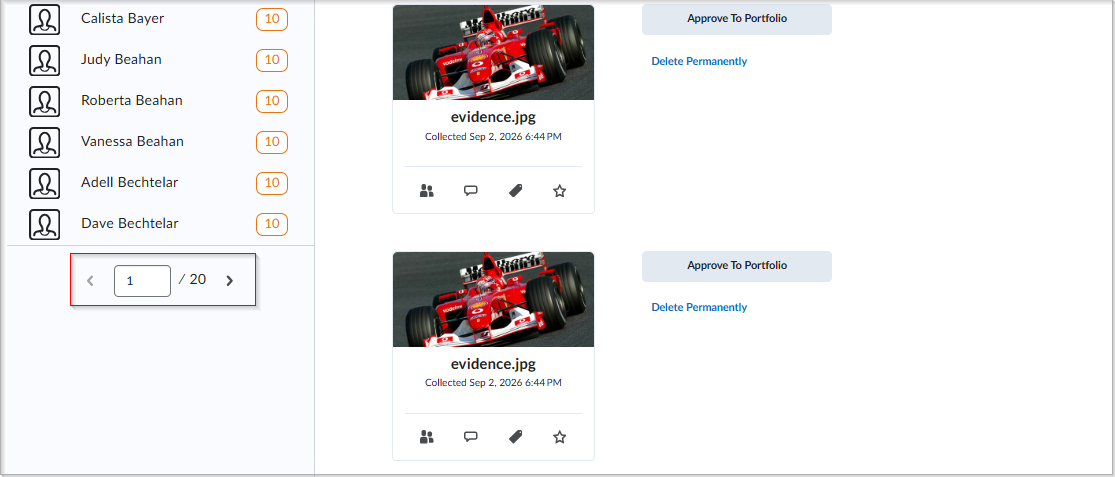
Figure: Pagination controls on the All Unapproved Evidence page improve navigation for large course enrollments.
Portfolio – Portfolio filter component modernization | Updated
This release introduces an updated Portfolio filter component that improves the clarity and navigation of category management. To provide a cleaner interface, the Go to Category Manager button is moved outside the filter component and renamed Manage Categories. On the All Unapproved Evidence page, Manage Categories is moved to More Actions, and Categorize All is renamed Add Categories. On individual evidence pages, Add Category is renamed Add Categories to more accurately reflect its purpose of tagging evidence with existing categories.
To distinguish between different management levels, the Category Management section on the Portfolio Class Settings page is renamed Class Category Management. On the portfolio category management admin tool page, Category Management is renamed School Category Management. These improvements ensure a consistent and intuitive workflow across both the evidence approval and individual evidence views.
| Note |
Note: This update does not redesign the Portfolio category management system or change how categories function at a technical level. |
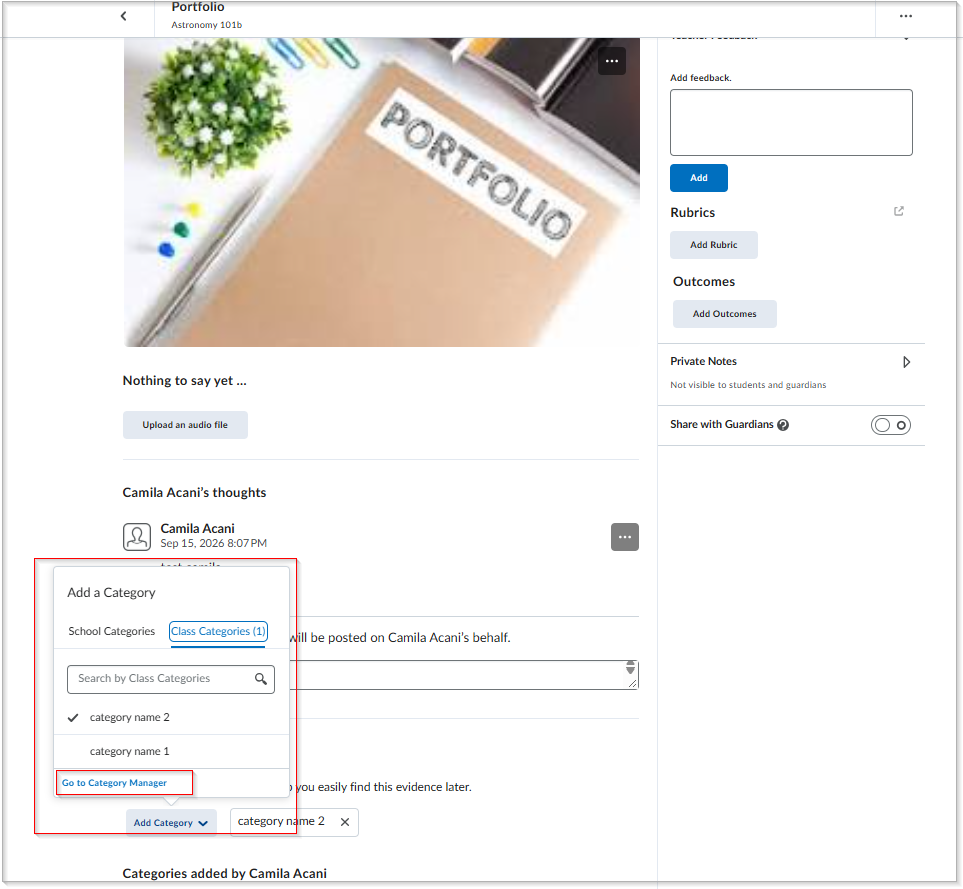
Figure: The previous individual evidence page showing Add Category and the Go to Category Manager button inside the filter component.
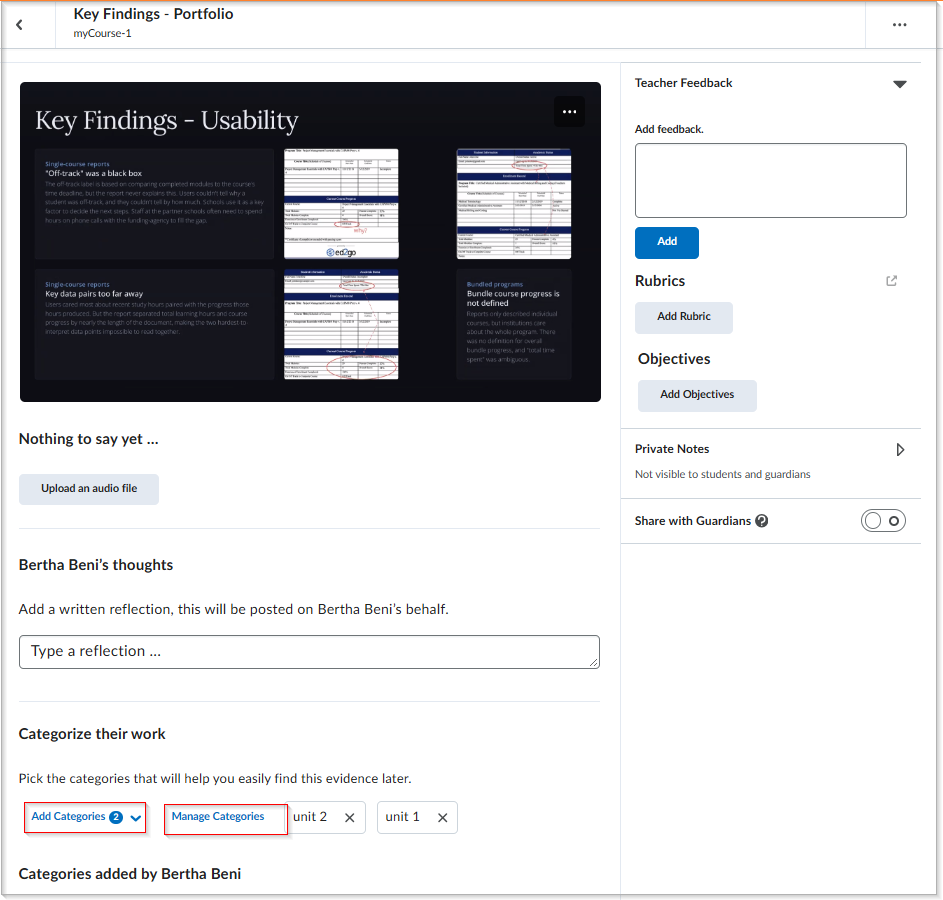
Figure: The updated individual evidence page showing the renamed Add Categories action and the relocated and renamed Manage Categories button, positioned outside the filter dropdown for improved navigation.
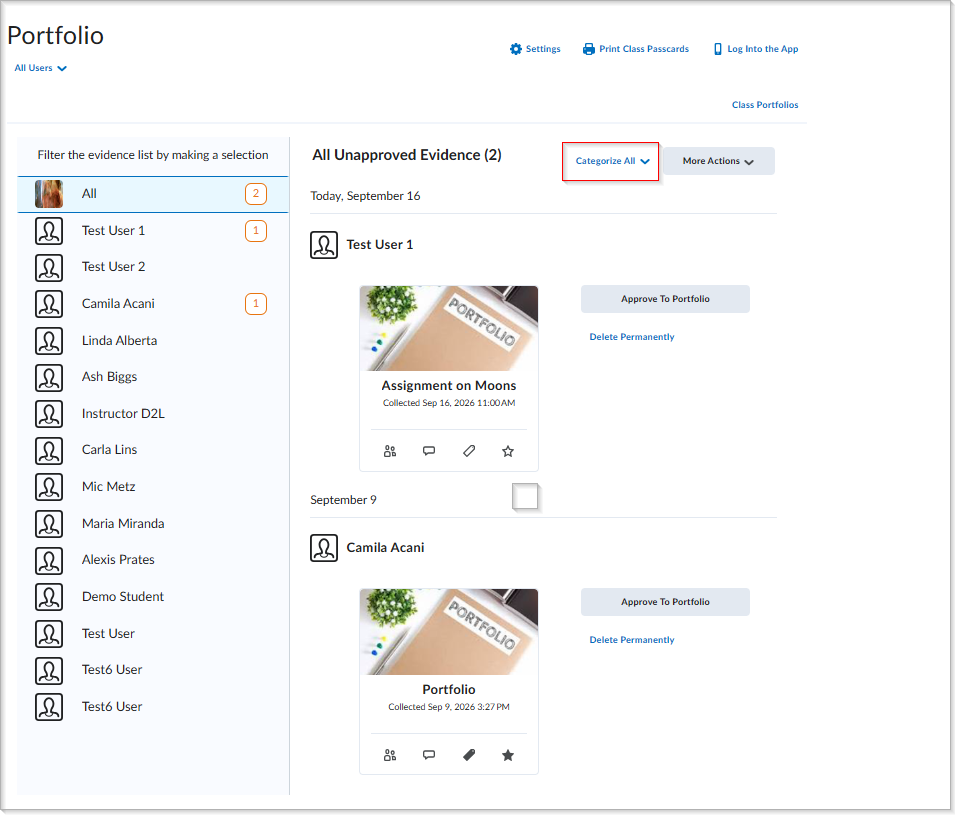
Figure: The previous All Unapproved Evidence page with the Categorize All action.
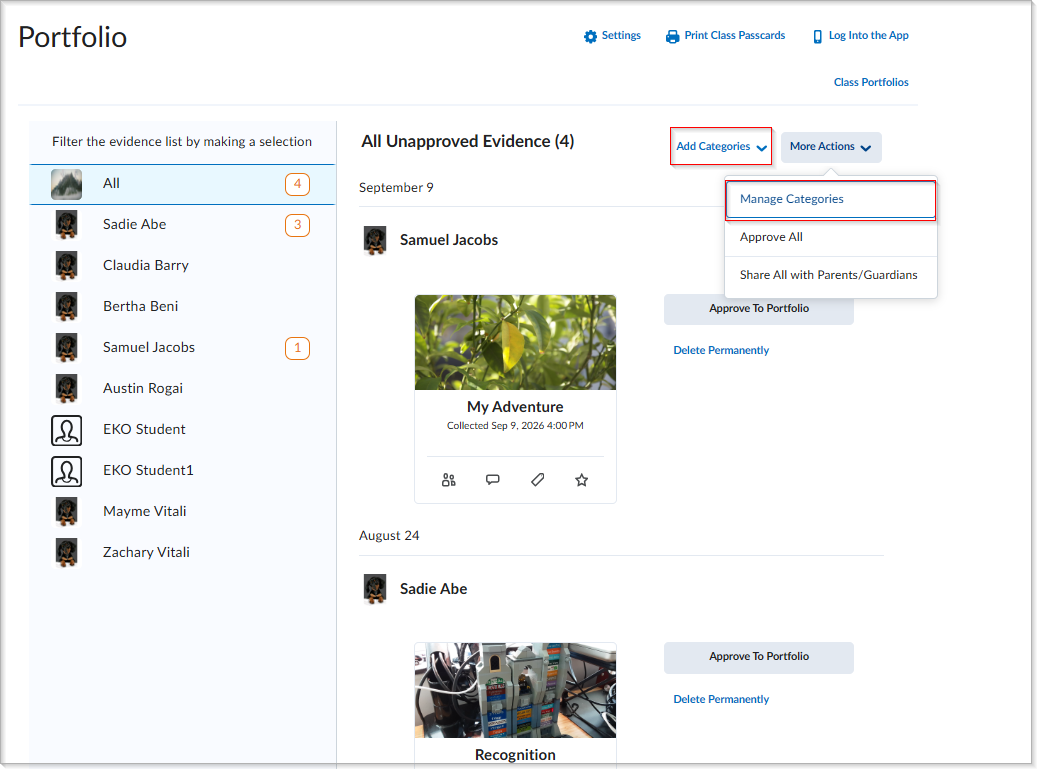
Figure: The updated All Unapproved Evidence page showing the renamed Add Categories action and More Actions, where Manage Categories is now located.
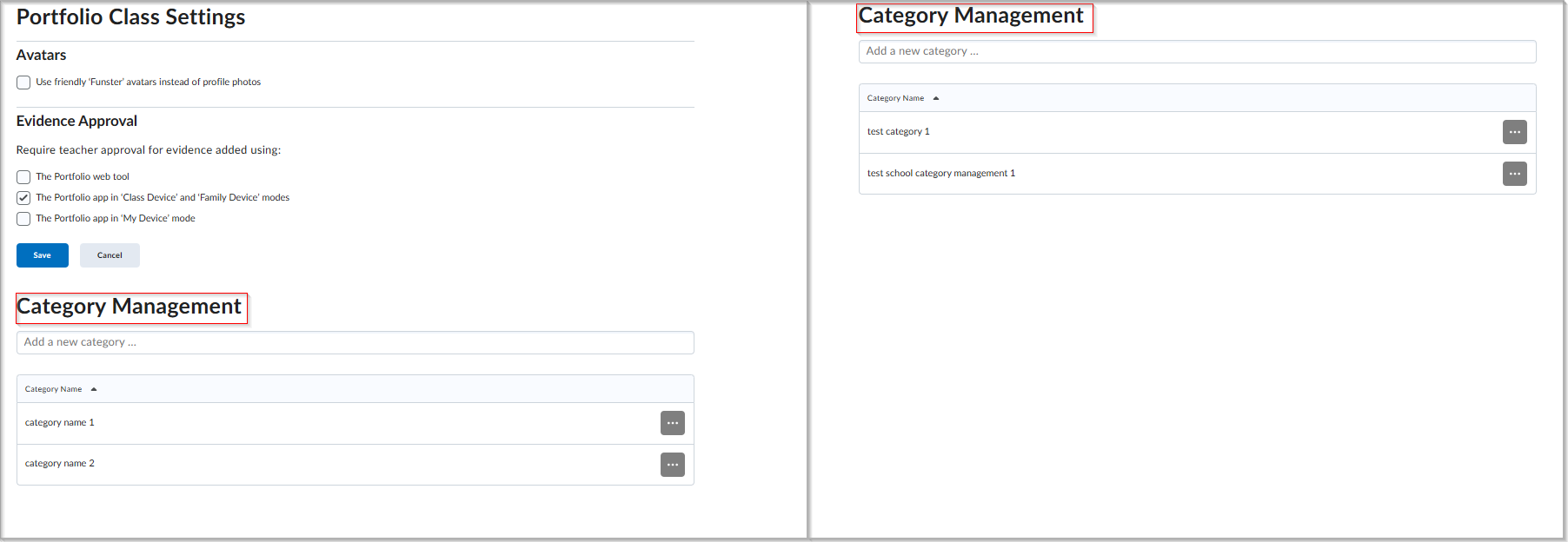
Figure: The previous Portfolio settings pages where both class-level and school-level management sections were identically labeled as Category Management.
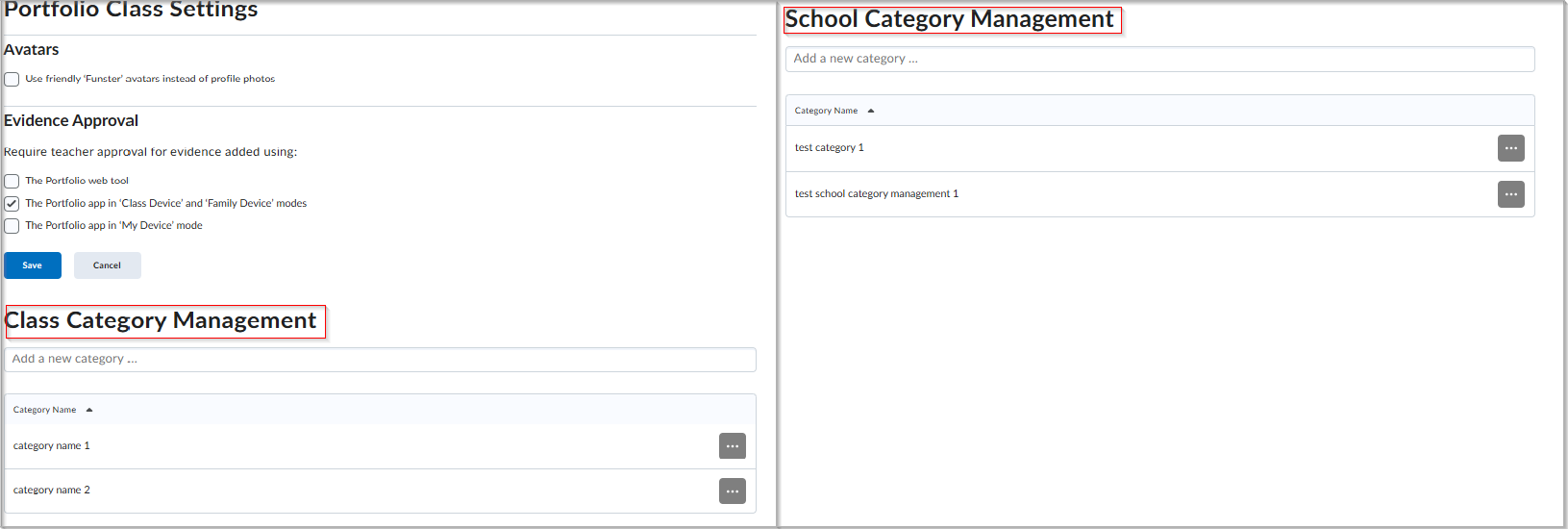
Figure: The updated Portfolio settings pages showing the renamed Class Category Management section (left) and the renamed School Category Management section (right) for improved clarity between management levels.
The Work To Do widget now includes a View Course Work link when accessed from a course homepage, giving learners access to all overdue and upcoming activities for that course. When a course has more than six activities, the new View Course Work link opens the Work To Do tool filtered to that course. This gives learners a complete view of their course-specific workload without requiring organization-level permissions.
Previously, learners with permission to view the widget only at the course offering level could see a maximum of six activities. The View All Work link, which opens activities across all courses, remains available only to users with organization-level permissions. For more information on Work To Do widget permissions, refer to Work To Do widget permissions.
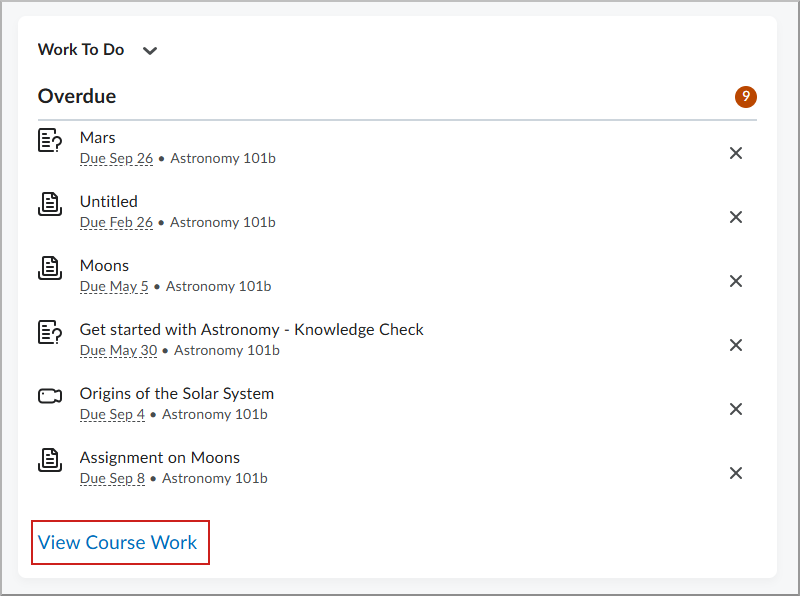
Figure: The Work To Do widget now displays a View Course Work link when more than six activities are available in a course.
Work To Do Widget – View times for upcoming and overdue activities | Updated
The Work To Do widget now displays the specific time an activity is due or ends, along with associated availability dates, when learners hover over an activity date. Previously, the widget displayed only the date an activity was due or ended.
This update gives learners more precise deadline information, including when they work across different time zones.
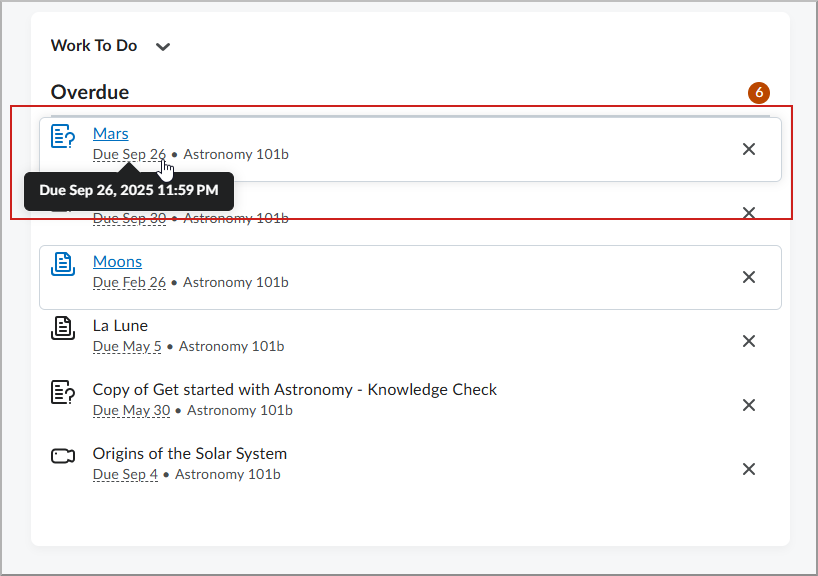
Figure: The Work To Do widget displays the specific time an activity is due when a learner hovers over the date.