Body
D2L makes updates to Brightspace on a monthly basis. Taylor University's updates are usually available the 24th of the month. To access the complete D2L release notes for January 2026, sign into the D2L Brightspace Community and click on this link: January 2026/20.26.01 - Brightspace . Taylor University does not implement all new updates.
Announcements – Images appear in emailed Announcement notifications | Updated
When instructors create an announcement (or administrators create a global announcement) which includes in-line images, any instant notification or emailed copy of that announcement now includes those images in the body of the email. Previously, only images added as file attachments to the announcement were included with the notification email, and in-line images were not shown.
 |
Note:This update applies only to images. Videos embedded in announcements are not included in emailed announcement notifications. |
This change ensures that learners who rely on email notifications can see the same visual content that appears in the original announcement, helping them notice important information that may have previously been missed when images were omitted from the email version.
New Content Experience – Control content visibility outside of availability dates | New
To help administrators manage how learners interact with content outside its availability window, a new configuration variable allows control over content visibility in the New Content Experience (NCE).
By default, content topics outside of set availability dates are hidden from learners. With this update, administrators can choose to:
- Hide content entirely outside availability dates (default behavior).
- Display the topic in the Table of Contents while keeping it inaccessible to learners.
This flexibility helps institutions give learners visibility into past or upcoming content without granting access, improving pacing awareness and supporting varied instructional strategies.
This change also aligns Brightspace behavior with institutional preferences and eases migration from other platforms.
Quizzes – Single Session Quiz | New
Instructors can now require learners to complete a quiz within a single Brightspace login session, helping maintain academic integrity. When this setting is enabled, learners cannot resume the quiz using another browser session. For example, if a learner starts a quiz on a laptop, they cannot continue the quiz on another device such as a smartphone or tablet.
This configuration variable is now enabled, instructors can navigate to the Availability Dates & Conditions section while creating or editing a quiz and select Lock each attempt to a single login session.
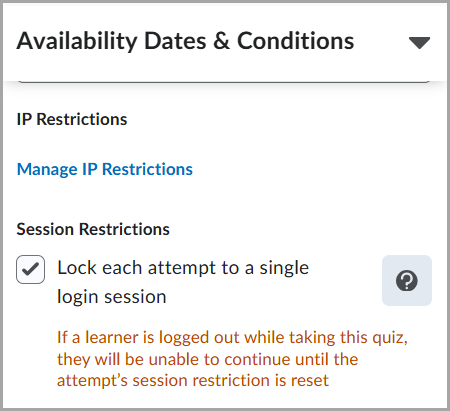
Figure: From the quiz’s Availability Dates & Conditions section, select Lock each attempt to a single login session to restrict attempts to one active session.
|
Note: This setting only restricts access to the quiz. It does not prevent learners from having multiple active sessions in Brightspace. |