Body
D2L makes updates to Brightspace on a monthly basis. Taylor University's updates are usually available the 24th of the month. To access the complete D2L release notes for October 2025, sign into the D2L Brightspace Community and click on this link: December 2025/20.25.12 - Brightspace . Taylor University does not implement all new updates.
Assignments – Group Assignment evaluation email enhancements | Updated
This release introduces enhancements to the Email Group button in Group Assignment Evaluation.
If a group has no members, or if the users in the group do not have an internal D2L email set up or an external email linked, the Email Group button no longer appears. The button now displays only when it is actionable, reducing confusion and improving interface clarity.
This update enhances the overall experience by aligning with accessibility and usability best practices, ensuring that only relevant options are shown to users.
Previously, the Email Group button appeared even in groups with no users, which caused confusion.
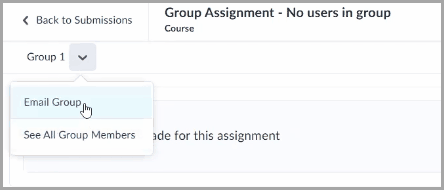
Figure: The Email Group button in Group Assignment Evaluation before this update if a group has no members.
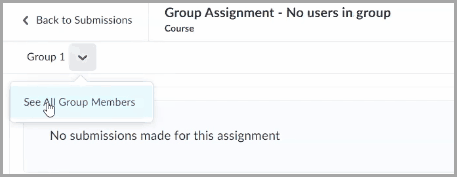
Figure: The Email Group button no longer appears in Group Assignment Evaluation after this update if a group has no members.
To ensure timely learner participation, instructors can now specify a due date for the first post in a discussion topic. This supports course pacing, institutional policies, and consistent expectations for learner engagement. This mirrors the behavior of Assignments and Quizzes, making the course experience more consistent and predictable.
Previously, instructors could not set due dates for initial discussion posts, which made it difficult to assess timely engagement or enforce deadlines. This update improves grading accuracy, simplifies compliance with participation policies, and supports smoother course migrations from learning management systems that already include this functionality.
The first post due date follows the same behavior as Assignments and Quizzes:
- Due dates must be between the start and end dates of the discussion topic.
- Availability types (for example, Hidden, Visible with access restricted, Visible with submission restricted) are respected.
Additional improvements include:
- Calendar tool integration: The first post due date appears in the calendar.
- Notifications: Administrators can enable notifications. When enabled, the due date will trigger a notification in Brightspace and push notification (Pulse App).
- Grading: Discussion due dates support automatic-zero grading.
- Other enhancements:
- In Manage Dates, first post due dates are visible and editable.
- In the Discussion List, due dates appear next to each topic.
- In New Content Experiences, Overdue and Late indicators appear when deadlines are missed. Classic content will continue to show the due date on the content topic.
- In Quick Eval and Consistent Evaluation, first post due dates appear in evaluation workflows.
- In the Work to Do widget, due dates appear.
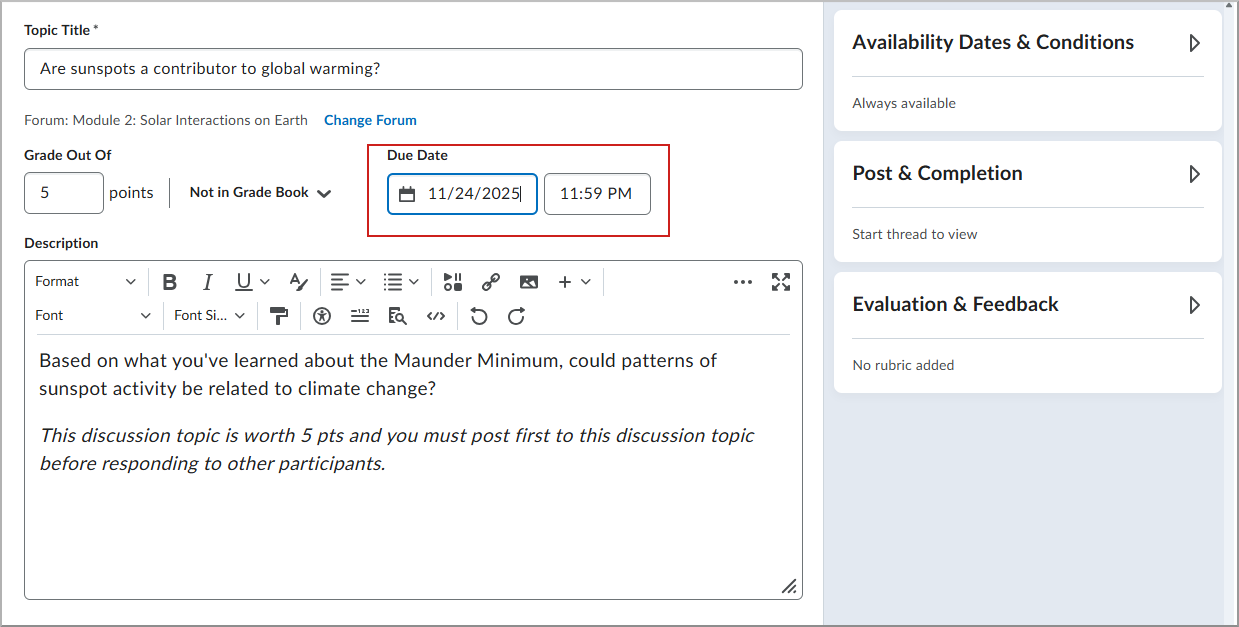
Figure: Instructor view of a discussion topic with a first post due date.
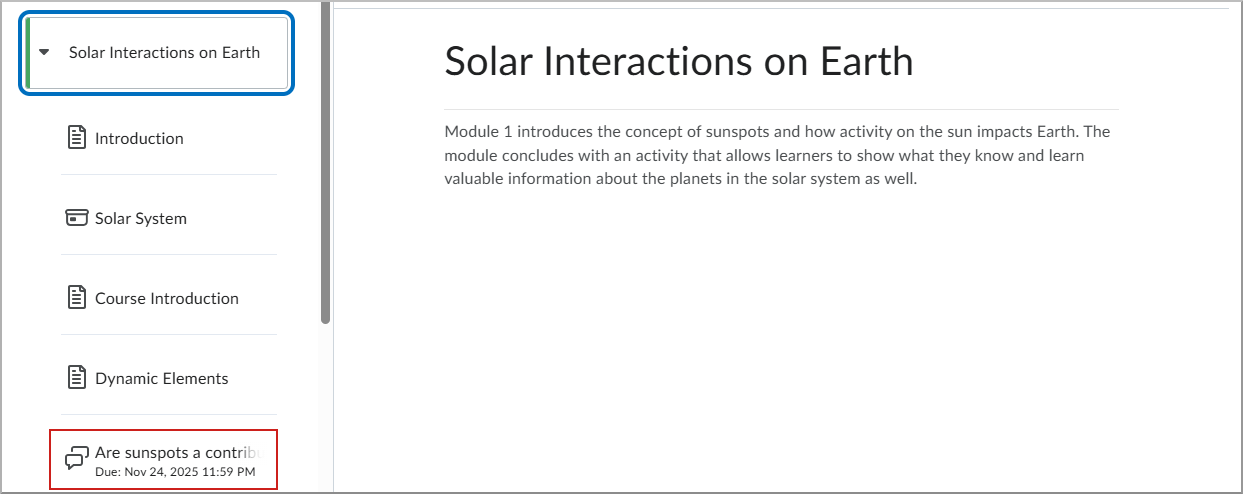
Figure: Learner view of a discussion topic with a first post due date.
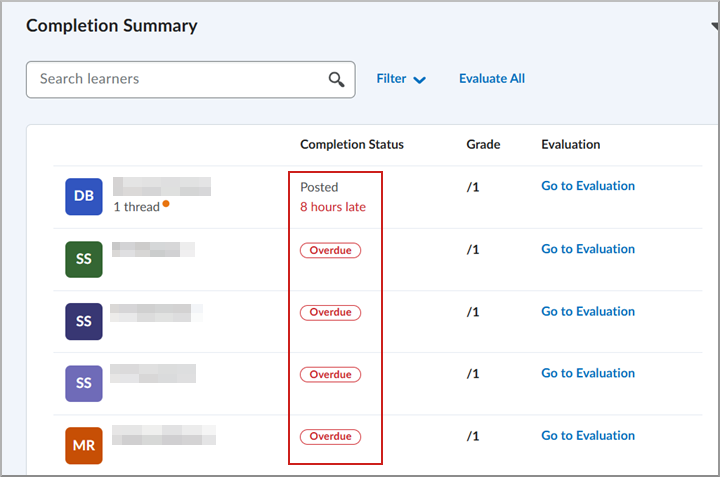
Figure: From the New Content Experience, open the Completion Summary to view indicators for overdue and late content items.
 |
Note: Discussion due dates must fall within the topic's availability window to appear in the calendar and trigger notifications. |
New Content Experience – Visibility settings for Assignments and Discussions are accurately reflected in NCE | New
With this update, visibility settings for Assignments and Discussions are now accurately reflected in the Content tool, ensuring the correct status for each topic.
In Assignments and Discussions, instructors can select from the following availability options:
- Visible with access restricted
- Visible with submission restricted
- Hidden
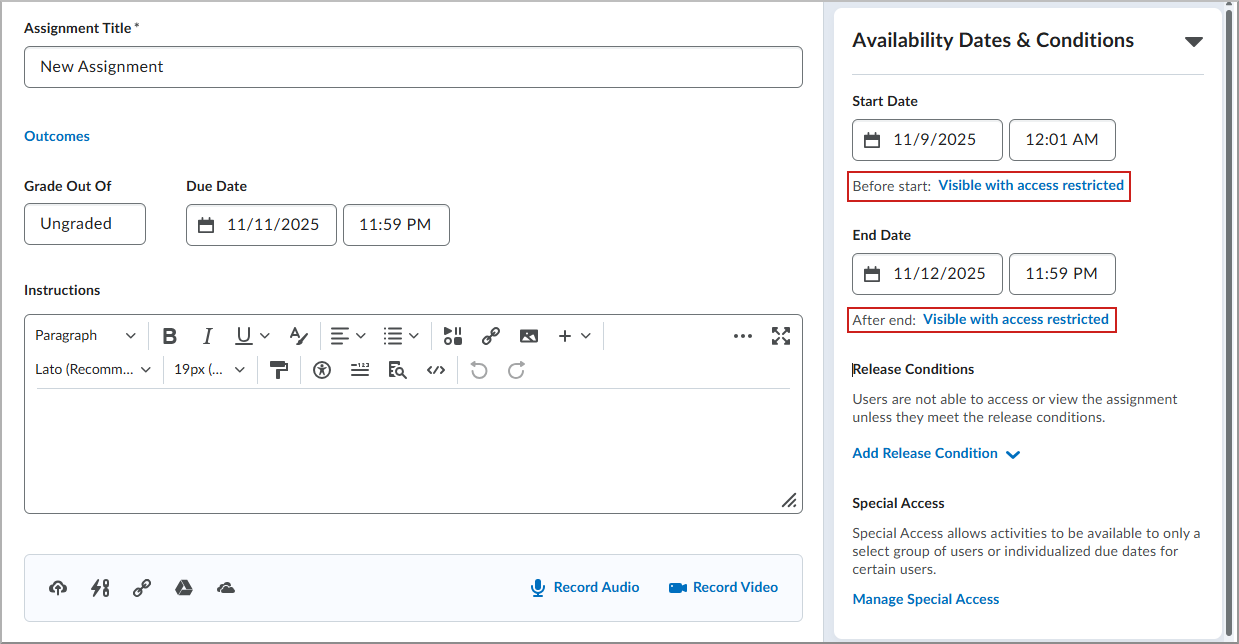
Figure: On the New Assignment page, click Visible with access restricted to view the visibility options.
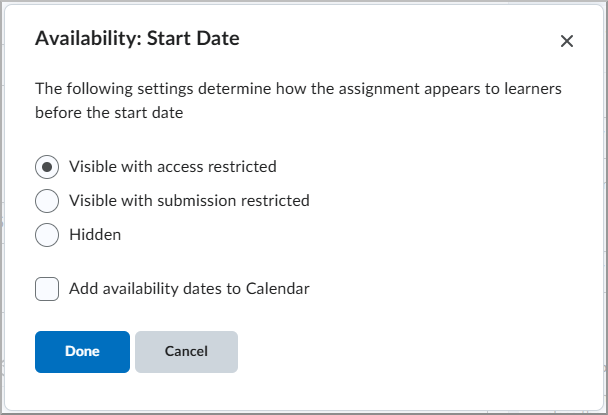
Figure: Select the visibility option desired for learners prior to Start date and click Done.
|
Note: This feature applies to the New Content Experience only and requires the Enhanced TOC to be enabled. No changes were made to the Learner Experience. |
Previously, these settings were not properly reflected in the New Content Experience (NCE), with all Assignments and Discussions being hidden outside of their availability dates, regardless of the selected visibility settings.
Pulse – See due dates, start dates and end dates on Content | New
This enhancement brings key scheduling metadata, due dates, start dates, and end dates, to content pages within the Brightspace Pulse app. This functionality ensures a consistent experience between the Brightspace and the Pulse app, helping learners manage deadlines and plan their workload directly within the app.
This new functionality brings the following capabilities:
- Due dates on units and content pages.
- Start and end dates.
- Only defined dates are shown, nothing is displayed for unset dates.
- When clicking the three-dot menu on a content item, learners can view the availability dates.
- These values are pulled directly from the LMS.
Previously, due dates, start dates, and end dates on content were only visible on the web platform.

Figure: The Start and End Date details dialog displays the full availability range for a content item when learners tap the three-dot menu.
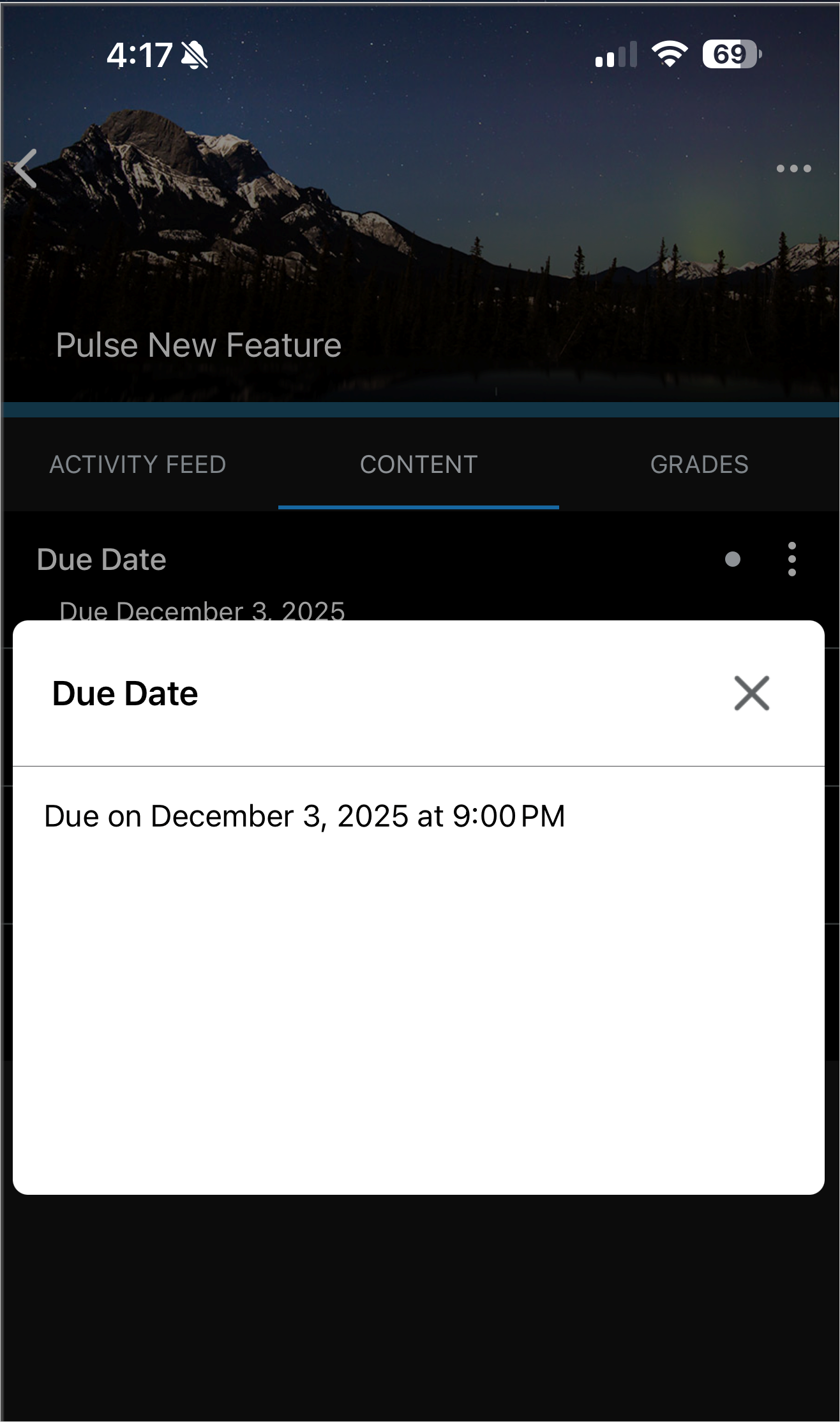
Figure: In the Pulse app, learners can tap a content item in the Content tab to view its full due date and time.

Figure: Dates appear directly on the content tab, displaying due dates, start dates, end dates, and availability ranges where applicable.
Instructors can now assign 0 (zero) points to a quiz question to collect non-graded information, for example, feedback or personal input.
This feature eliminates the need for workarounds such as assigning 0.01 points or manually adjusting scores after submission. Instructors can enter zero points in the points field for any question type within the quiz, ensuring that these questions do not contribute to the quiz's total points. This feature is especially useful for gathering additional information from learners during a quiz or for implementing an "Honesty Code" question at the beginning of the quiz.
Previously, instructors were restricted from entering zero points for quiz questions.
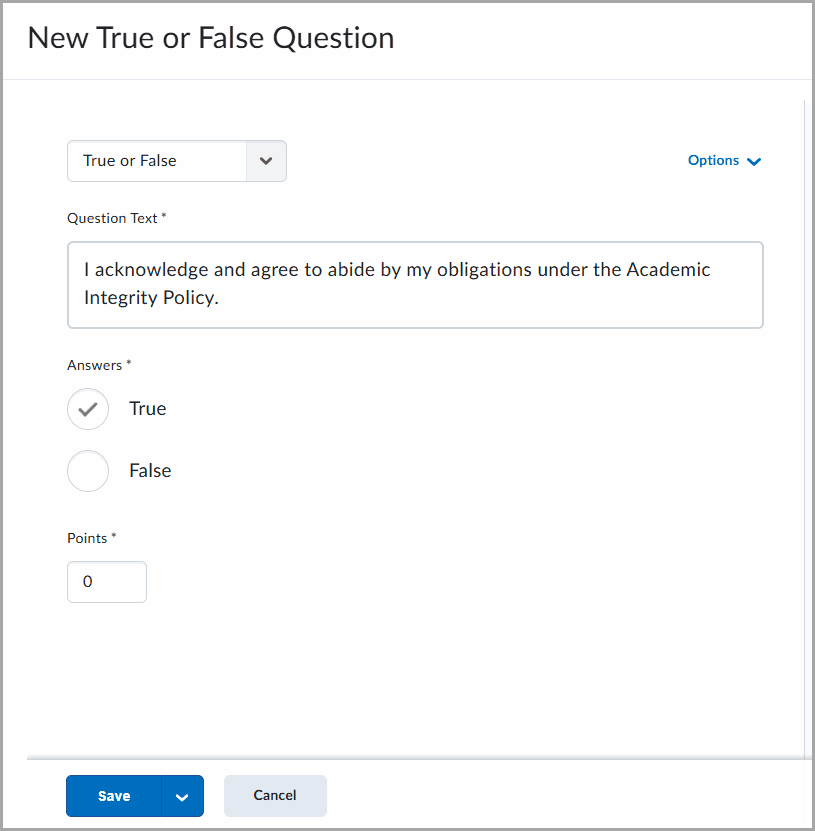
Figure: Example of a quiz question displaying a statement on academic integrity with answer options for True and False, and the points field set to zero.