Body
If you want to make sure people know when you’re busy or away from your desk, set your status in Teams. The little dot on your profile indicates if you’re available or not.
To change your status, select your profile picture at the top right of Teams. Select your current status to choose another status from the list.
Teams will automatically set the status in some cases, like when you’re on a call.
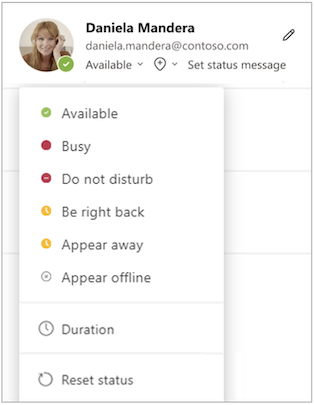
Here are more details about each status:
-
Available is when you’re active in Teams and don’t have anything on your calendar (no meetings or calls, for example). Note that Teams will automatically set your status from Availableto Awaywhen you lock your computer or when it enters idle or sleep mode. On mobile, this will happen when the Teams app is in the background.
-
Busy is when you want to focus on something, and you still want to receive notifications. If you’re in a meeting or call, Teams will automatically change your status to In a meeting or In a call (Busy) when not set to Do not disturb.
-
Do not disturb is when you want to focus or present your screen and don’t want to receive notifications.
-
Be right back is when you want to say you’re temporarily away. It’s never set automatically.
-
Appear away is when you need to work without responding right away.
-
Appear offline is when you want to indicate that you're not signed in to Teams, so won't be responding until you're back online. You'll still receive notifications if anyone messages you.
For more details, see this Microsoft article: https://support.microsoft.com/en-us/office/change-your-status-in-microsoft-teams-ce36ed14-6bc9-4775-a33e-6629ba4ff78e