D2L makes updates to Brightspace on a monthly basis. Taylor University's updates are usually available the 24th of the month. To access the complete D2L release notes for February 2026, sign into the D2L Brightspace Community and click on this link: February 2026/20.26.02 - Brightspace. Taylor University does not implement all new updates.
Assignments – Group assignments now supported in Advanced Assessment | New
Group assignments are now supported in Advanced Assessment, enabling instructors to collaboratively evaluate groups of learners in Brightspace using Co-Marking, Delegation, and Multi-Evaluator capabilities. This update leverages the existing Groups tool, allowing learners to submit work as a team and receive shared feedback and grades through Advanced Assessment.
The feature introduces the following key improvements:
- Seamless group evaluation: instructors can allocate evaluators to groups rather than individuals.
- Consistent experience: interface terminology and visuals have been updated to reflect group workflows:
- References to Learners are replaced with Groups, such as Allocate Evaluators to Groups.
- Evaluation and feedback panel text reflects group-based workflows.
- Improved workflow integrity: confirmation prompts prevent accidental evaluator setting loss when switching between group and individual assignments.
To enable group assignments, instructors must first create groups in Course Admin > Groups. Then, when creating an assignment, they must select Group Assignment under Submission & Completion.
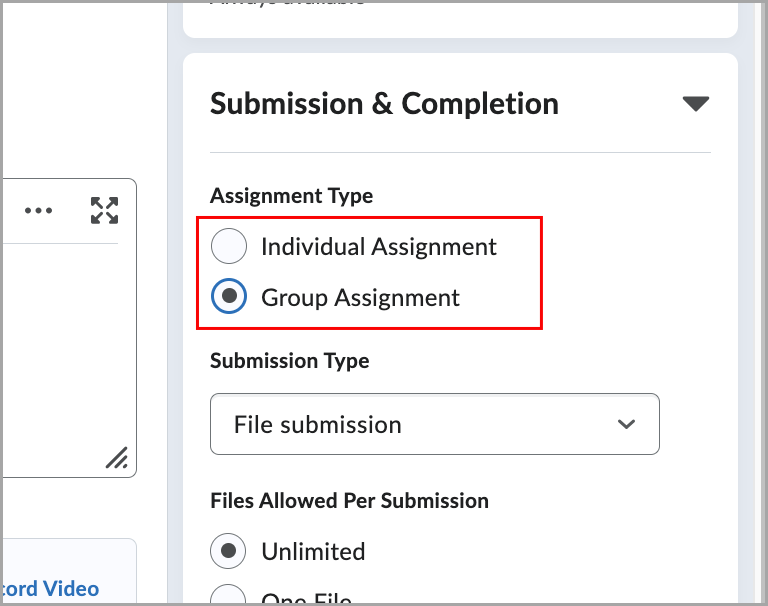
Figure: Select Group Assignment under Assignment Type in the Submission & Completion settings to create a group-based assignment.
To trigger the Advanced Assessment workflow, select evaluators in the Evaluation & Feedback dropdown.
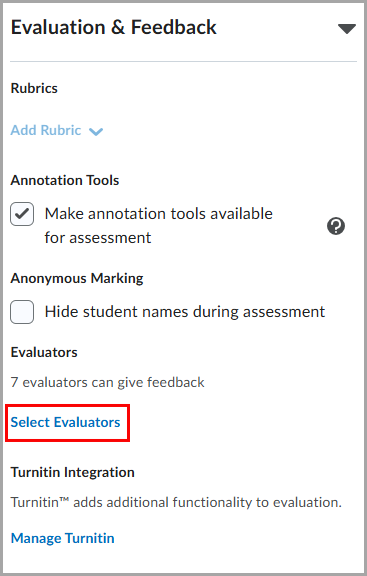
Figure: Click Select Evaluators under Evaluators in the Evaluation & Feedback settings to create an assignment.
Additionally, the following changes were made in the Manage Allocations table:
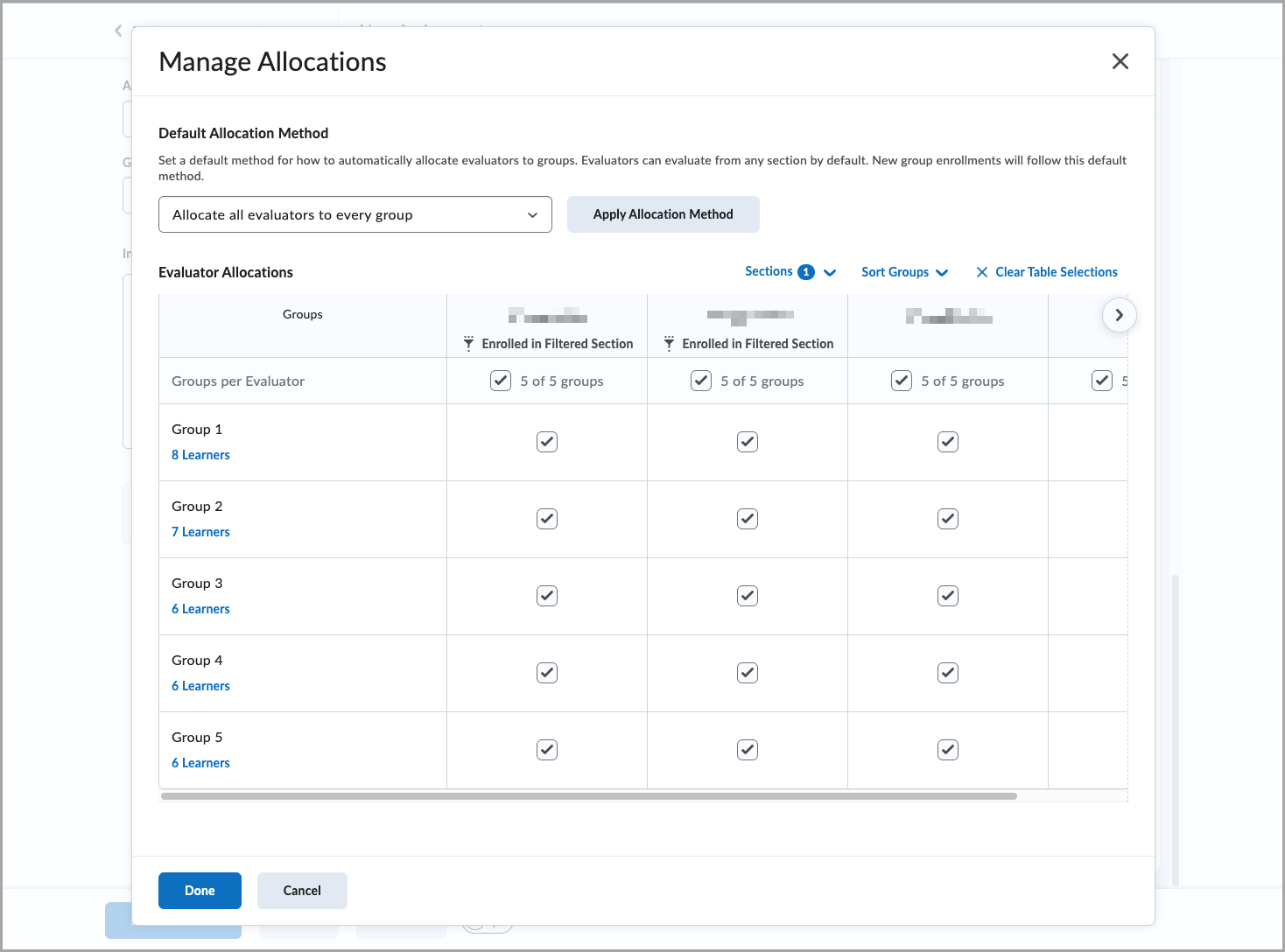
Figure: Use the Manage Allocations dialog to set a default evaluator allocation method and adjust group assignments.
When sections are enabled, a Sections filter appears in the Manage Allocations dialog. Instructors in the selected section display a small tag under their names to indicate the applied filter, and only groups containing learners from the selected sections appear in the left-hand column.
When switching between individual and group assignments after evaluator allocations are made, existing allocations are removed. A confirmation prompt appears to alert users.
 |
Notes:
- Group assignments in Advanced Assessment are only supported in the new assignment creation page. Legacy assignment creation page users should follow the prompt to the new page, to create group assignments in Advanced Assessment.
- Grades sync as before; individual overrides remain possible.
- Group assignments are not currently supported in Quick Eval.
- Switching between individual and group assignment types is disabled after learner submissions are made.
|
Previously, group assignments were not supported in Advanced Assessment. This update removes that limitation, enabling the use of Co-marking, Delegation, and Multi-evaluator features for groups.
Assignments – Improved error messages when uploading unsupported file types | Updated
Brightspace now provides clearer and more consistent error messages when learners attempt to submit file assignments using unsupported file types. These improvements help learners understand which file types are allowed and make it easier to correct submission issues.
The updated messaging appears across assignment submission workflows and Activity Display, ensuring learners receive appropriate guidance based on the context of their submission.
Updated error messages for file submissions
When a learner attempts to upload a file from Google Drive, One Drive or Locker with a restricted or unsupported file extension, Brightspace now displays more specific messages depending on the number of restricted file types configured for the assignment.
Assignment submission page
- If fewer than seven file types are restricted, learners see a message listing the allowed file extensions, such as:
Your work could not be submitted. You can only submit files with the following file extensions: PDF, DOCX, or TXT.
- If seven or more file types are restricted, learners see a simplified message:
Your work could not be submitted. You can only submit files with allowed file extensions.
Improved feedback in Activity Display
In Activity Display, learners now receive clearer visual indicators when uploaded files are not allowed:
- If a learner uploads files with unsupported extensions, Activity Display identifies which uploaded files are not allowed.
- If a file has no extension or the file type cannot be detected, Activity Display notifies the learner that the file type is unsupported.
- If five or more files with unsupported extensions are uploaded, Activity Display displays a consolidated message indicating that multiple files are not allowed.
Improved validation when configuring Custom File Types in Assignment Creation
When instructors set Allowable File Extensions to Custom File Types during assignment creation, Brightspace now requires at least one file extension to be entered before the assignment can be saved.
If the field is left blank, Brightspace displays a clear inline error message and prevents the assignment from being saved. This improvement helps instructors avoid invalid assignment configurations and reduces submission issues for learners.
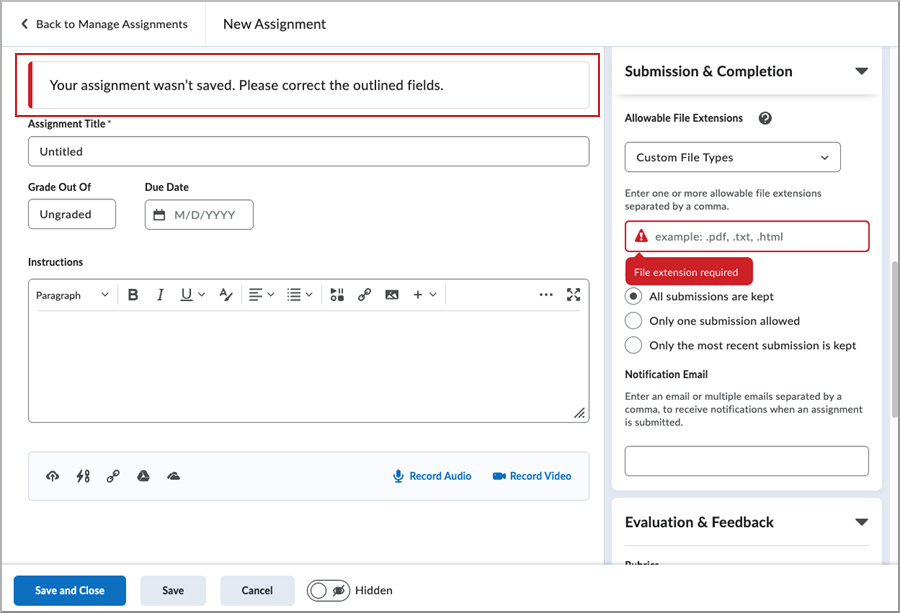
Figure: New Assignment page displaying a validation error when Custom File Types is selected without specifying at least one allowable file extension.
|
Note: These changes improve messaging only and do not alter which file types are allowed for an assignment. |
Class Progress – User progress for Content charts now loads asynchronously | Updated
The completion progress bars for the Content Completed and Content Visited charts now load asynchronously as instructors scroll down the Class Progress page. Progress details appear for each user as they come into view, allowing the page to continue loading smoothly regardless of the number of users or content objects being calculated.
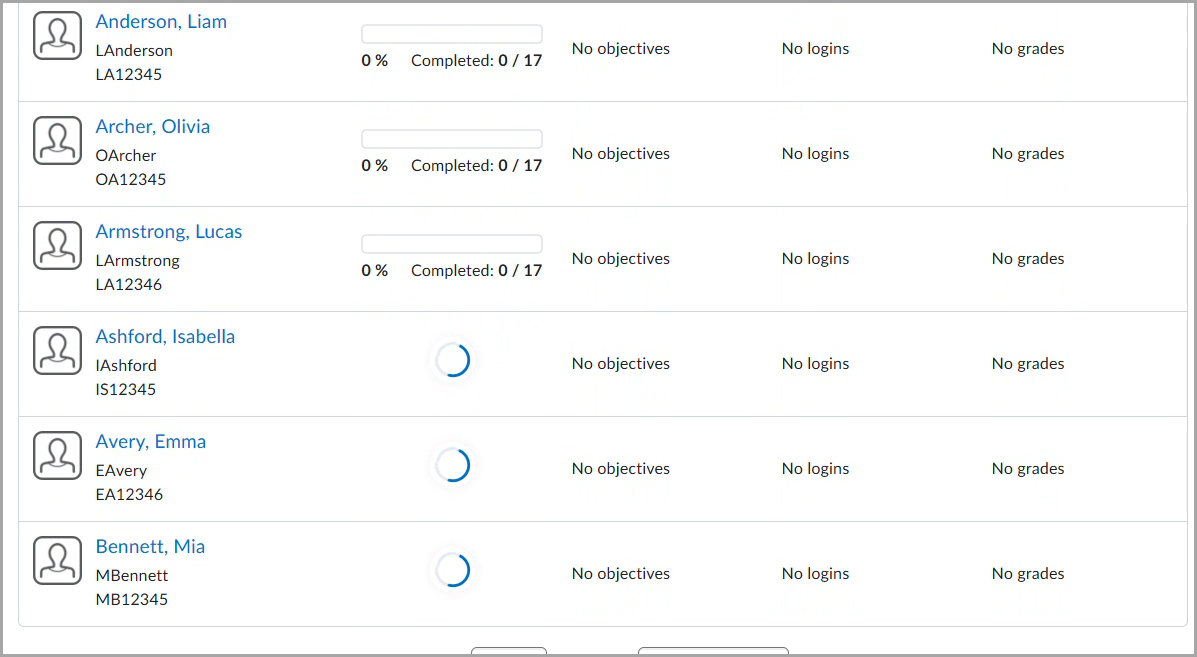
Figure: Completion progress bar charts load asynchronously.
Previously, courses with a large number of users or content objects could experience page timeouts when viewing the Content Completed or Content Visited columns in Class Progress.
Grades – Improved navigation within the Enter Grades page | Updated
The Enter Grades page now offers improved horizontal navigation, making it easier to work with large gradebooks. Instead of relying on a horizontal scroll bar at the bottom of the page, instructors can use navigation arrows on either side of the gradebook, along with a scroll bar at the bottom of the grid, to navigate across grade columns.
This update also improves how dropdown menus behave, preventing them from appearing underneath other fields such as user names.
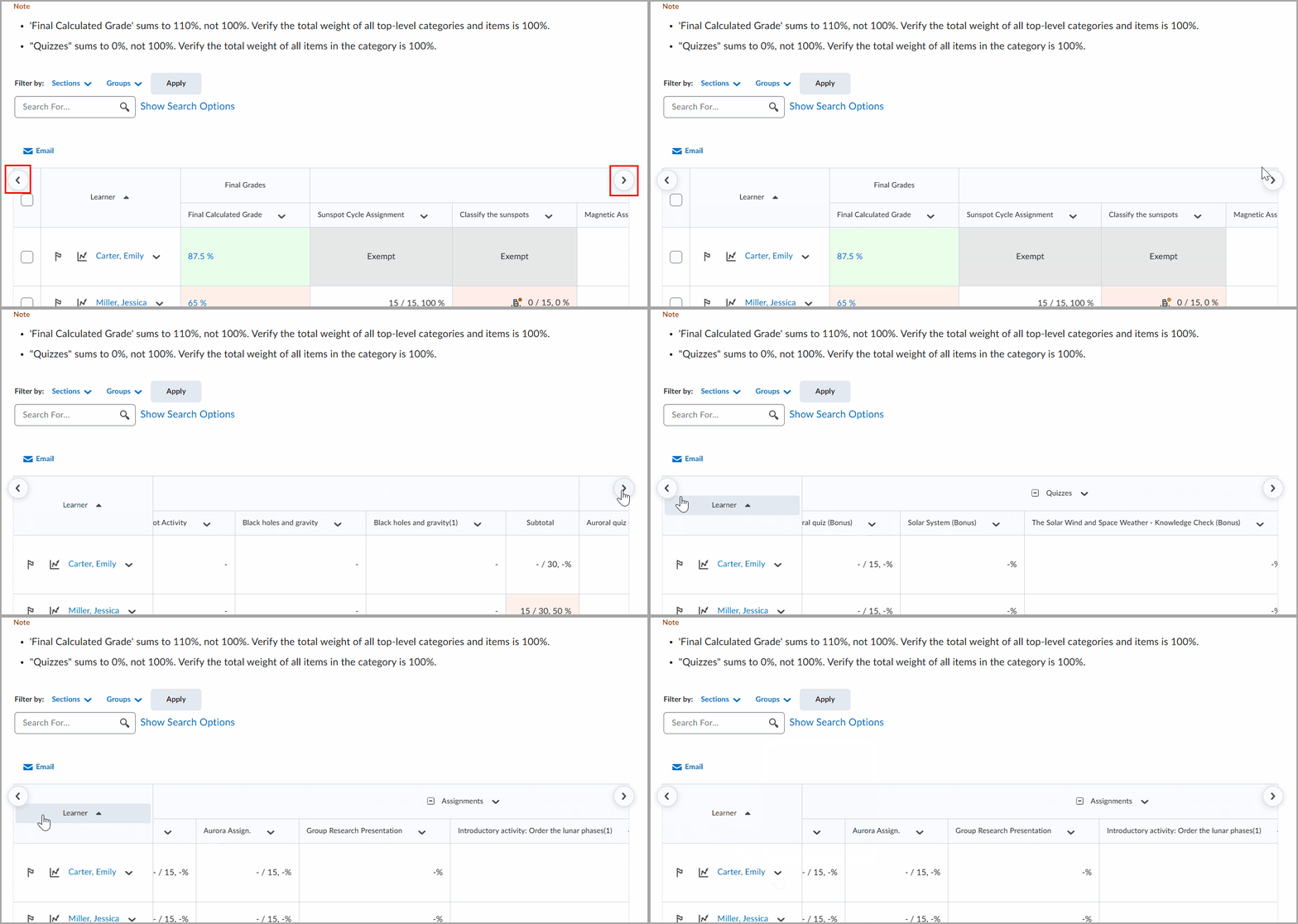
Figure: Use the left and right arrows to scroll horizontally and view additional grade columns in the Enter Grades table.
Previously, horizontal navigation relied on a scroll bar at the bottom of the page, which was not always visible unless users scrolled down.
Groups – Improved filters by groups and sections | Updated
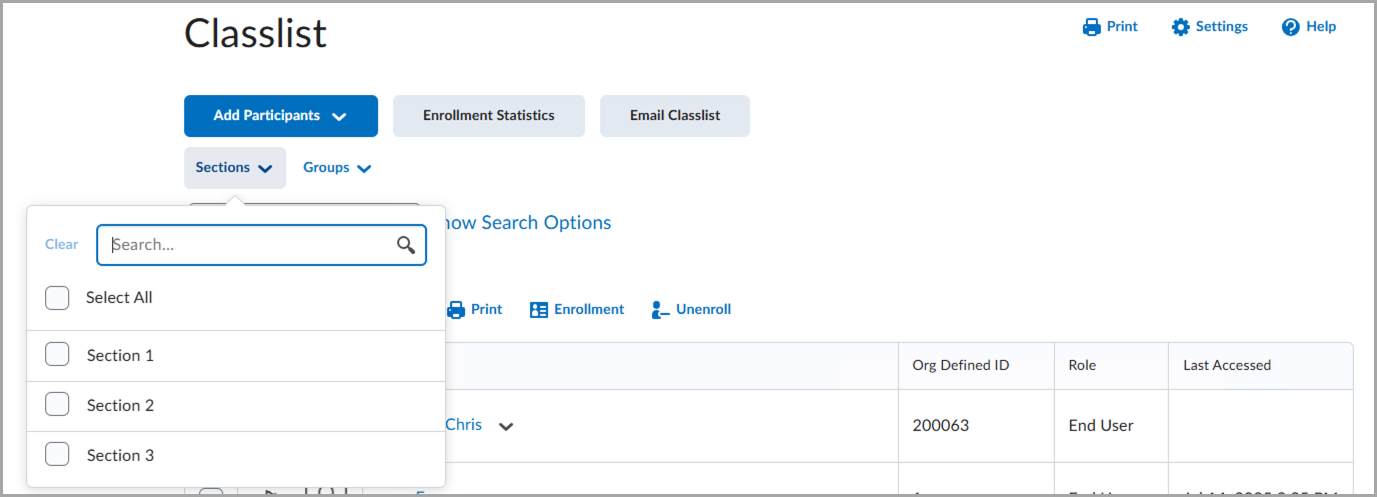
With this release, user filters across multiple tools are updated to display Groups and Sections in separate dropdowns, improving navigation and scalability for courses with up to 1,000 groups per category.
Previously, the View By filter combined groups and sections into a single dropdown. In courses with many groups or sections, this resulted in long, difficult-to-navigate lists.
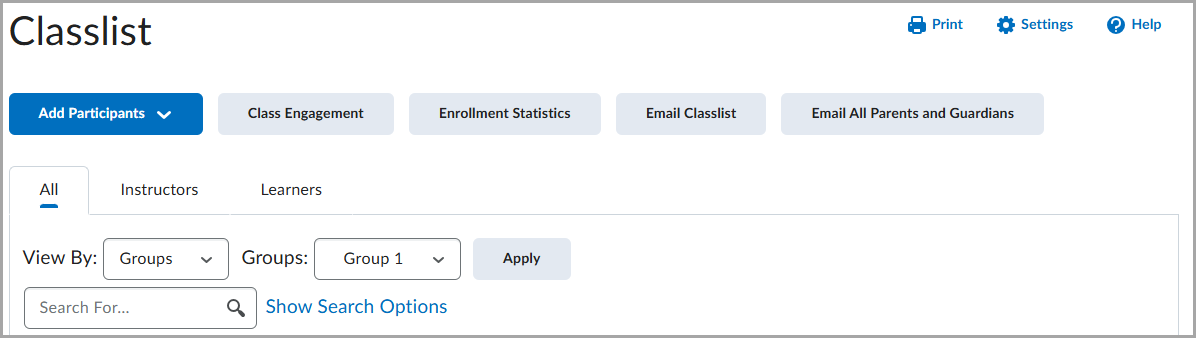
Figure: The previous View By filter shown in Classlist.
The updated filter is available in the following areas:
- Assignments:
- Filtering by users on the Manage Evaluators and Manage Special Access pages
- Filtering by users on the submissions page, and observed submissions page
- Attendance:
- Filtering by users when viewing and entering attendance data
- Class Progress:
- Classic Content:
- Filtering by users on the Completion Summary tab
- Filtering by users on the Content Reports pages
- Classlist:
- Filtering by users
- Emailing and filtering by users
-
- Competencies:
- Filtering by users when grading an activity
- Filtering by users when viewing competencies, or viewing rubrics statistics
- Discussions:
- Filtering by users on the Statistics page
- Filtering by users when viewing Topics
- Filtering by users when assessing Topics
- Grades:
-
Quizzes:
- Filtering by users on the Statistics page
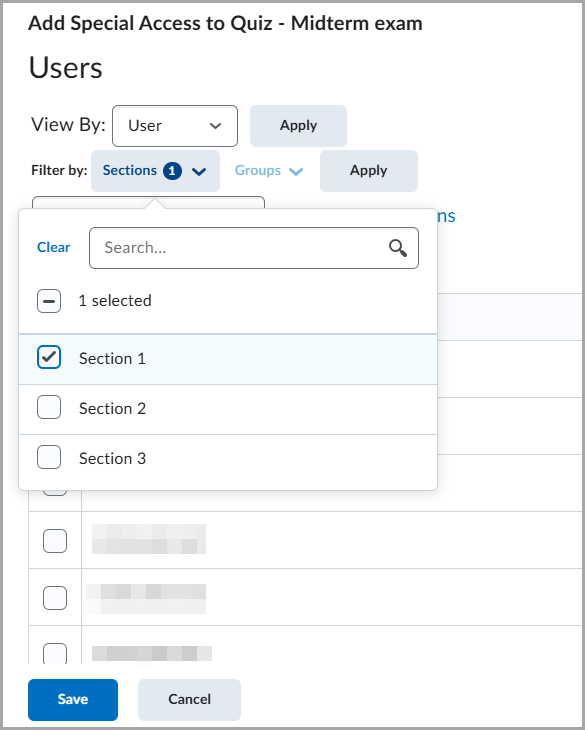
- Figure: The redesigned filter shown in Manage Special Access.
- Filtering by users on the Statistics page
- Surveys:
- Filtering by users on the Statistics page
Surveys – Improved experience for generating survey reports | Updated
Most survey reports are now generated asynchronously, and instructors receive a notification when the reports are ready for download.
Both CSV and Excel options are generated asynchronously, while the HTML option continues to be generated synchronously.
This update ensures that survey report generation aligns with the existing asynchronous experience for quiz reports.
The following report types now generate asynchronously:
- Summary Report
- Individual Attempts
This feature enhances the reliability of survey reporting, particularly for large datasets that previously risked browser freezing or timeouts during generation and export.
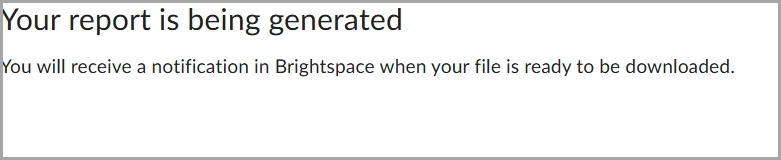
Figure: A confirmation message appears while Brightspace generates the report and notifies instructors when the report is available for download.
Instructors are notified of completed reports via the Notifications icon, indicated by an orange dot on the top navigation bar  .
.