Classic Outlook
Determine email account type
There are two ways to send automatic out-of-office replies in classic Outlook. The way you do it depends on the type of email account you have.
Select File on the left end of the ribbon:
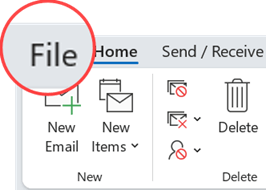
... then select the image below that matches your version of classic Outlook:
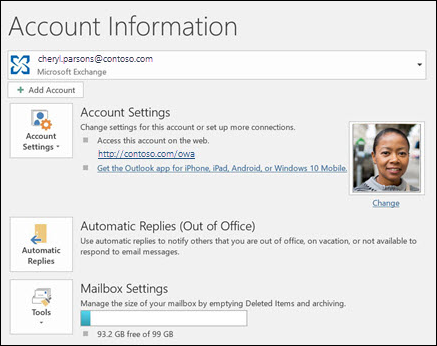
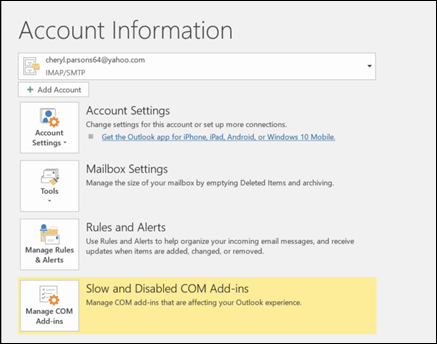
If you see the Automatic Replies button, follow the steps below.
If you don't see the Automatic Replies button, follow the steps to use rules to send an out of office message.
How to set up an automatic reply
-
Select File > Automatic Replies.

-
In the Automatic Replies box, select Send automatic replies.
Optionally, set a date range for your automatic replies. This will turn off automatic replies at the date and time you enter for the end time. Otherwise, you'll need to turn off automatic replies manually.
Note: If you don't see Automatic Replies, use Rules and Alerts to set up your out-of-office message.
-
On the Inside My Organization tab, type the response that you want to send to teammates or colleagues while you are out of the office.
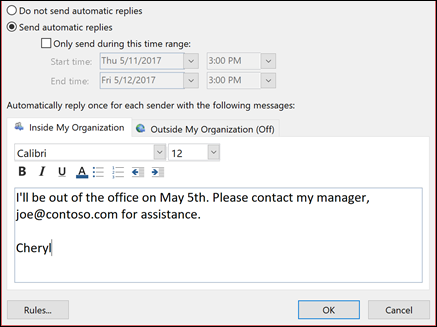
Note: Sending automatic replies to anyone outside my organization will send your automatic reply to every email, including newsletters, advertisements, and potentially, junk email. If you want to send automatic replies to those outside your organization, we recommend choosing My contacts only.
-
Select OK to save your settings.
Turn off automatic out-of-office replies
When classic Outlook is setup to send automatic replies, you'll see a message under the ribbon with this information. Select Turn off to disable automatic out-of-office replies. If you want to modify the dates for your automatic reply or the message sent, use the steps above to modify your settings.

New Outlook
-
On the View tab, select View settings in new Outlook.
-
Select Accounts > Automatic Replies.
-
Select the Turn on automatic replies toggle.
-
Select Send replies only during a time period, and then enter start and end times.
-
Under Send automatic replies inside your organization, enter the message to send while you're away. (You can use the formatting options for text alignment, color, and emphasis.)
To set up automatic replies to other people, select Send replies outside your organization, then add a separate message for that audience.
Note: Sending replies outside your organization will send your automatic reply to every email you receive, including newsletters, advertisements, and potentially, junk email. If you want to send automatic replies to those outside your organization, we recommend choosing Send replies only to contacts.
-
When you're done, select Save.
https://support.microsoft.com/en-us/office/send-automatic-replies-out-of-office-from-outlook-9742f476-5348-4f9f-997f-5e208513bd67