Did you know that you can print to any of the Konica copiers around campus, even if you don't know their specific names? By selecting CampusSecurePrint as your printer when you print from your TU-managed Mac or PC, you can send your job to be held until you release it at any copier around campus. Here's an idea of the concept:
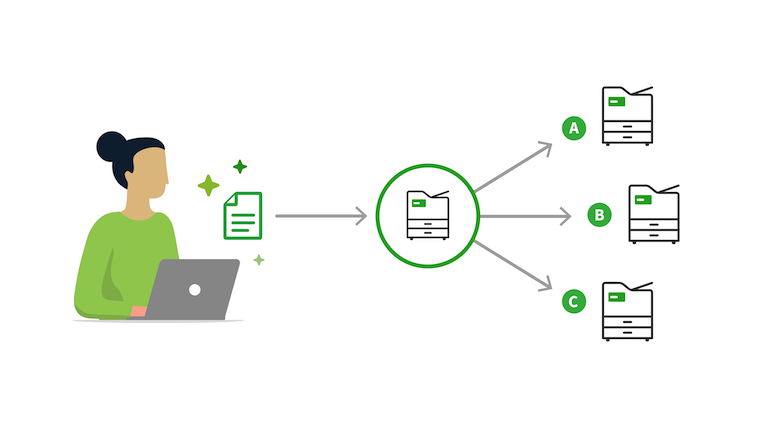
(If you're super curious, this is a function of Papercut call Find Me Printing - here's a quick explainer video)
Practically speaking, to use CampusSecurePrint, you'll
- Choose CampusSecurePrint as your printer when you print from your PC/Mac instead of say, Reade1C, or InformationTechnology2C
- Go to any copier on campus
- Swipe your TU ID card or type in your Papercut ID
- Your print job will print at that copier.
It's that easy!