If your Mac or Magic Keyboard has Touch ID, you can use it to unlock your Mac, authorize purchases from the iTunes Store, the App Store, and Apple Books, and make purchases on the web using Apple Pay. You can also use Touch ID to sign into some third-party apps.
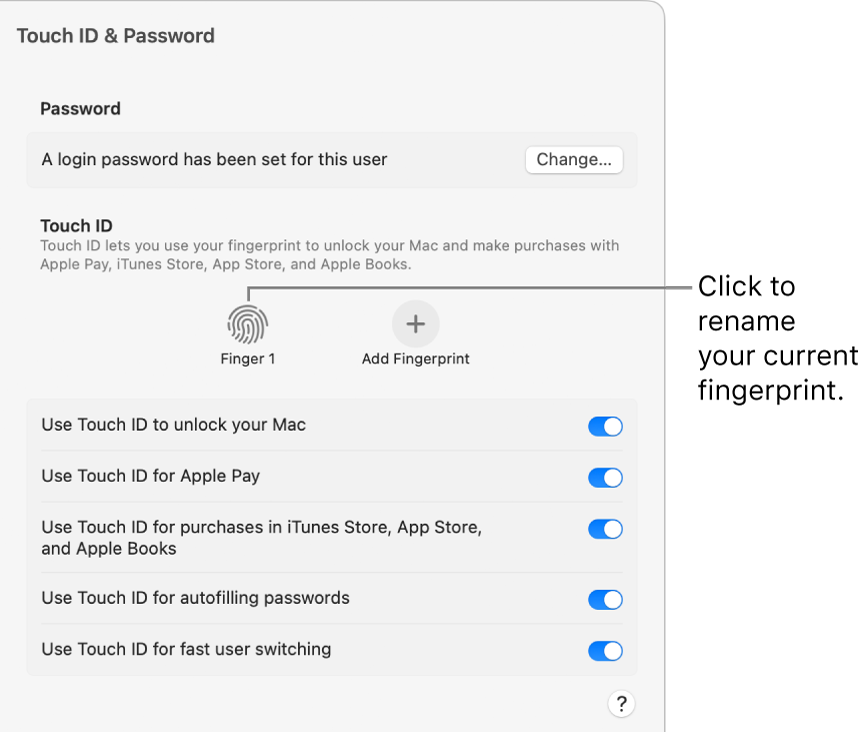
Set up Touch ID
-
On your Mac, choose Apple menu  > System Settings, then click Touch ID & Password
  in the sidebar. (You may need to scroll down.)
-
Click Add Fingerprint, enter your password, then follow the onscreen instructions. If your Mac or Magic Keyboard has Touch ID, the sensor is located at the top right of your keyboard. You can add up to three fingerprints to your user account (you can save up to five fingerprints on your Mac).
- Choose how you want to use Touch ID:
-
Unlock your Mac: Use Touch ID to unlock this Mac when you wake it from sleep.
-
Apple Pay: Use Touch ID to complete purchases you make on this Mac using Apple Pay.
-
iTunes Store, App Store, and Apple Books: Use Touch ID to complete purchases you make on this Mac from the Apple online stores.
-
Autofill passwords: Use Touch ID to automatically fill in user names and passwords and to automatically fill in credit card information when requested while using Safari and other apps.
Use Touch ID to unlock your Mac, log in, or switch users
To use Touch ID for these tasks, you must have logged in to your Mac already by entering your password.
-
Unlock your Mac and some password-protected items: When you wake your Mac from sleep, or open a password-protected item, just place your finger on Touch ID when asked.
-
Log in from the login window: Click your name in the login window, then place your finger on Touch ID.
Full instructions from Apple are available here:
https://support.apple.com/guide/mac-help/use-touch-id-mchl16fbf90a/mac