D2L makes updates to Brightspace on a monthly basis. Taylor University's updates are usually available the 24th of the month. To access the complete D2L release notes for July 2026, sign into the D2L Brightspace Community and click on this link: August 2026/20.26.08 - Brightspace. Taylor University does not implement all updates.
Createspace - Now available by click on the gear in the top right corner of Brightspace and search Createspace.
Createspace provides a centralized workspace where instructional design teams can create, organize, and manage reusable learning content before deploying it to Brightspace. You can build content once, deploy it across multiple courses, and keep learning experiences consistent by syncing updates from a single source.
Key features of the launch include:
- Centralized Authoring Workspace: Create reusable pages, assignments, discussions, quizzes, and modules.
- Content and Asset Libraries: Organize and manage content and assets using shared libraries and folders, including version management.
- Source Courses: Leverage Source Courses to standardize and scale course development, building master content in a dedicated environment.
- Deployment and Syncing: Deploy reusable content into future or inactive courses and sync changes from library objects to all deployed sections. Note: Quiz Sync is unavailable with this release.
- Folder-based Collaboration: Collaborate securely with your team using folder-level permissions and shared workspaces.
- Outcome Alignment: Map learning outcomes and skills directly to modules and content items within the workspace to create intentional, outcome-driven learning experiences.
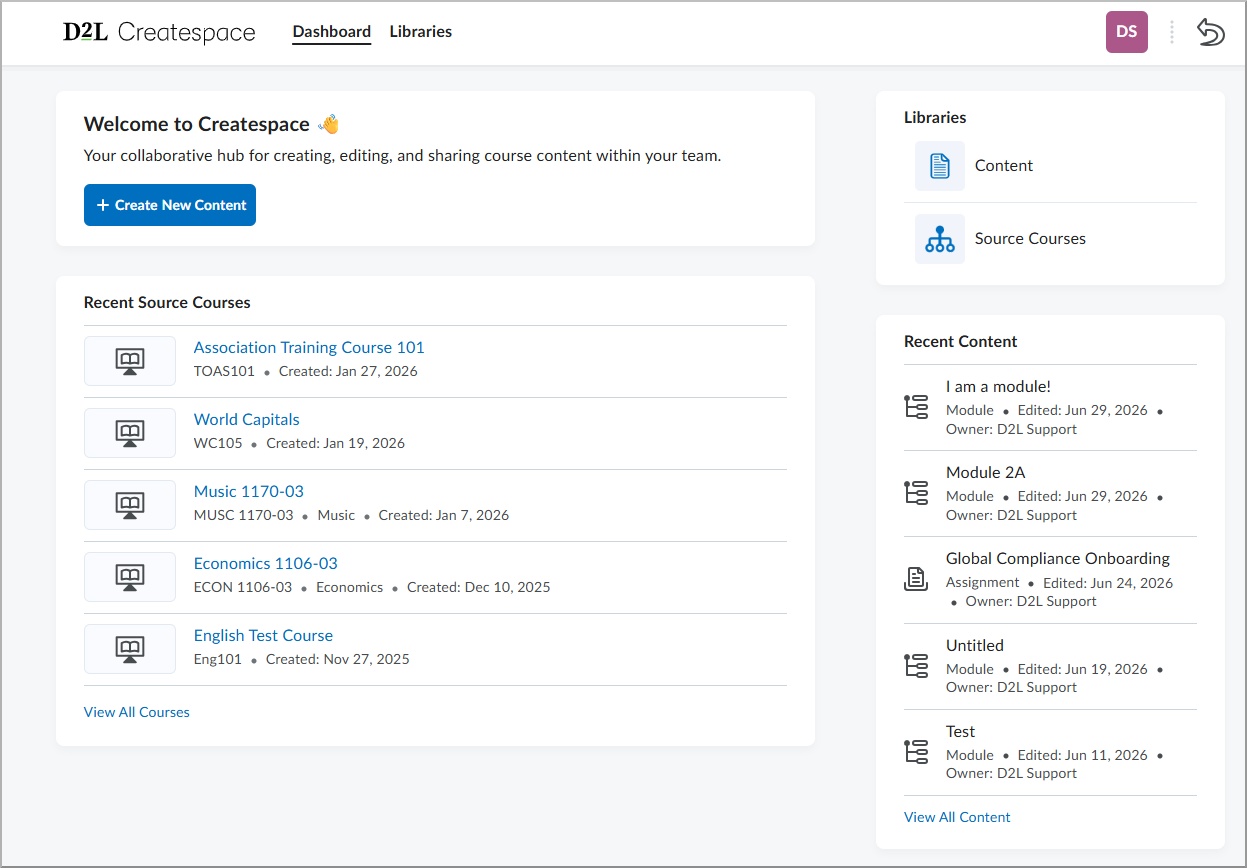
Figure: The new Createspace landing page provides a central hub for content authoring and deployment.
Learning Outcomes – Align learning outcomes to content modules and submodules for enhanced course design and coverage visibility | New
Learning outcomes can now be aligned directly to content modules and submodules, extending outcome alignment beyond topics and assessment activities. This enhancement provides a more intentional and structured way to map learning outcomes across the entire course hierarchy.
Administrators and instructional designers can align one or more learning outcomes when creating or editing content modules and submodules. These alignments are also surfaced within the Outcomes Coverage Experience, allowing users to view and manage course-wide outcome coverage across modules, submodules, topics, and assessment activities in a single location within the New Content Experience.
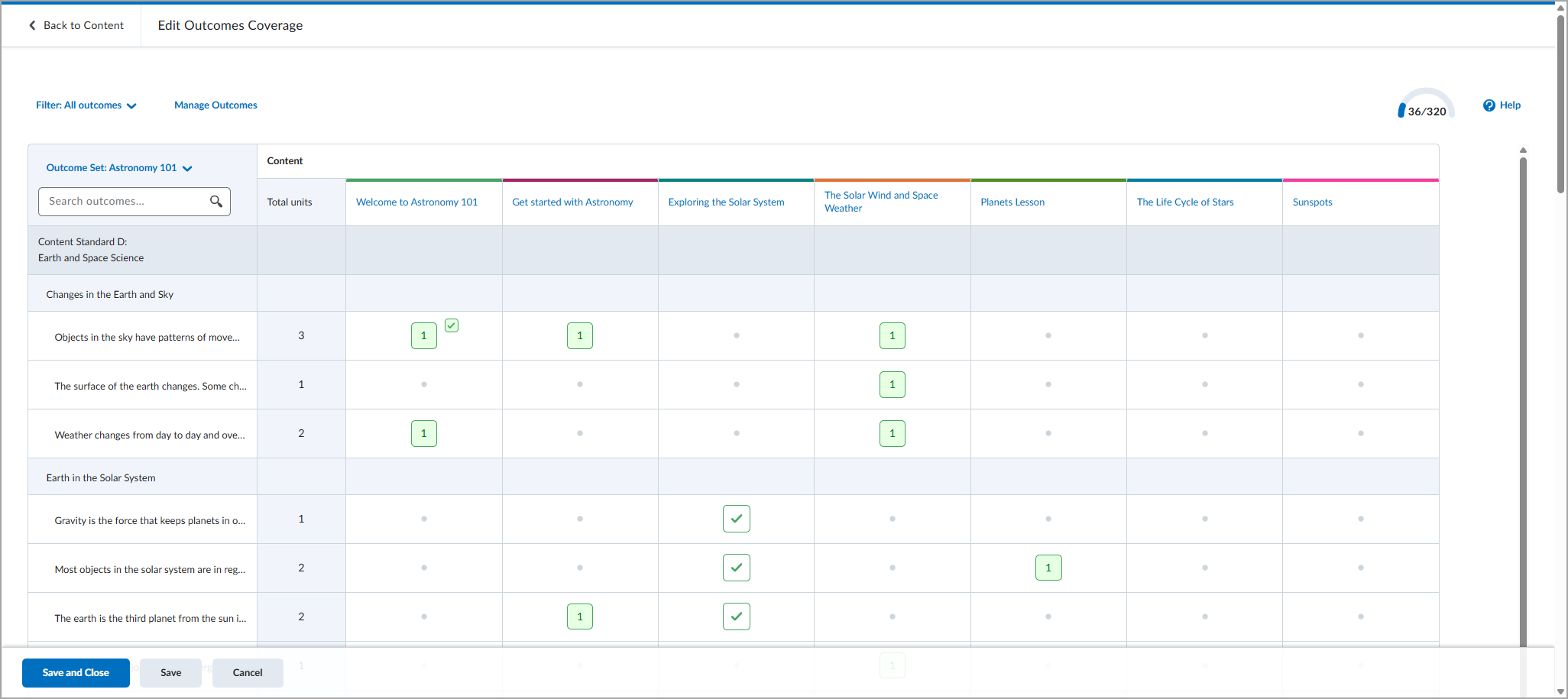
Figure: The Edit Outcomes Coverage page in the New Content Experience displaying learning outcomes assigned to course modules.
Quizzes – Improved filter and source dropdowns in Question Library | Updated
This update improves the source and filter dropdowns in the Browse Existing Questions dialog to better align with Brightspace standards and provide a more consistent experience.
Both dropdowns now include a search option, helping instructors find sources and filters more quickly.
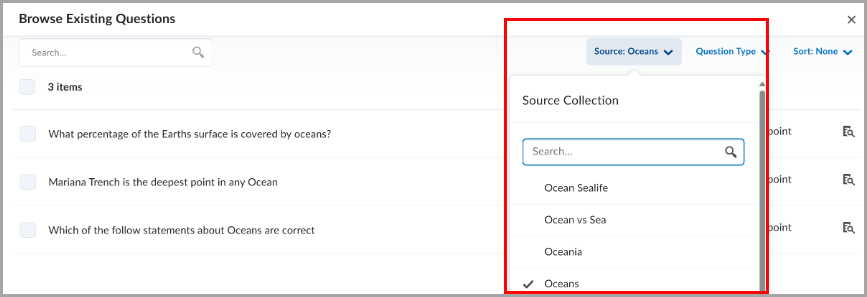
Figure: The Source dropdown with a search field in Question Library.
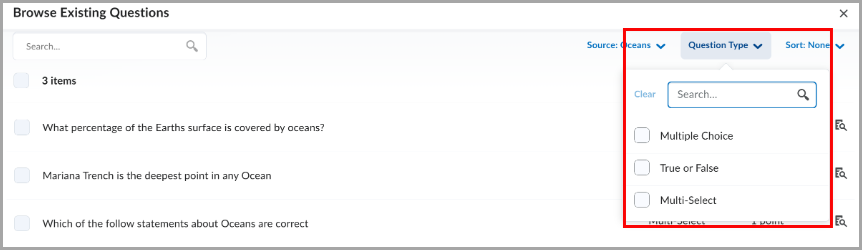
Figure: The filter dropdown with a search field in Question Library.
Quizzes – Flag questions and strikethrough answer options | New
This release introduces the question annotation option in Quizzes. Learners can flag quiz questions to revisit later and apply strikethrough formatting to answer options to help narrow their choices.
Learners can select the bookmark icon  beside a quiz question to flag it for review. Flagged questions appear in the left navigation, allowing learners to quickly return to them.
Learners can also select the strikethrough icon  beside answer options to eliminate choices they believe are incorrect.
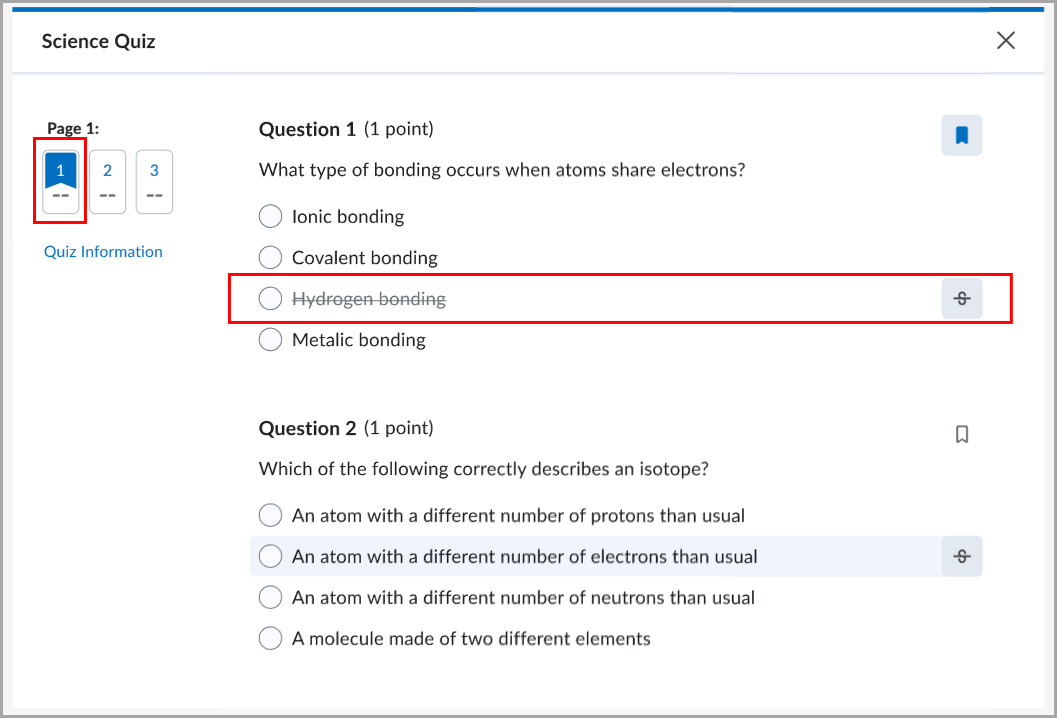
Figure: A flagged quiz question with an answer option shown in strikethrough.
Instructors can disable these tools for learners by selecting Hide question annotation tools in the Timing & Display section of the quiz edit page.
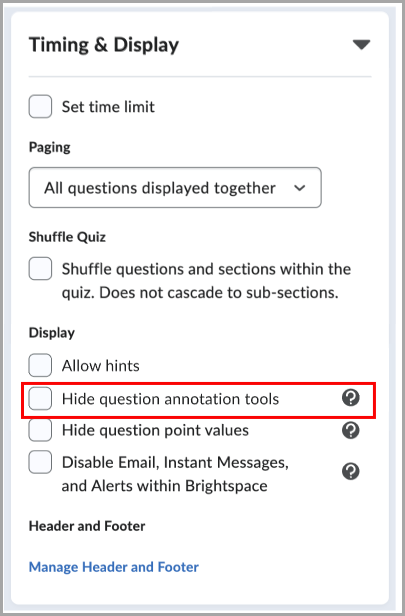
Figure: When creating or editing a quiz, in the Timing & Display section, select Hide question annotation tools to disable question flagging and answer option strikethrough for learners.
Work To Do widget – Evaluation activities are hidden by default | Updated
The Work To Do widget now helps learners with multiple roles, such as teaching assistants, focus on upcoming and overdue work by hiding evaluation activities by default. Previously, the widget displayed both personal course due dates and evaluation tasks for users with multiple roles, making it more difficult to track learner deadlines.
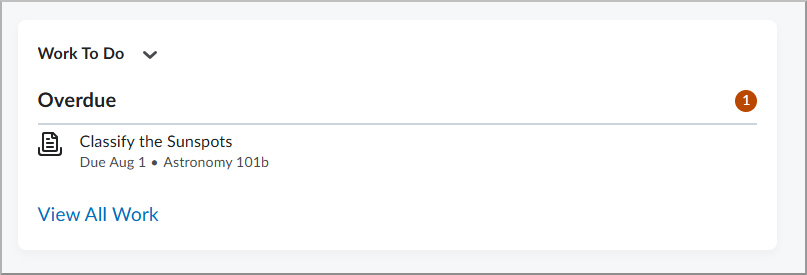
Figure: The Work To Do widget now filters out evaluation activities by default for users with multiple roles.
Work To Do widget – Automatically marks modules as complete | Updated
This release updates the Work To Do widget so that when learners complete all activities in a module, the module is automatically marked as complete and removed from the widget.
Learners now see only activities that still require completion, reducing clutter in the widget.
Previously, completed modules that have due dates could continue to appear as overdue because the module itself was not automatically marked as complete. As a result, learners could see overdue modules that no longer required action and could not be manually dismissed.
 |
Note: This change applies only to modules completed after this release. Existing modules that are already overdue continue to appear as overdue.
|
Figure: In the Work To Do widget, completed modules no longer appear after all module activities are completed.